
Front Desk, Booking Chart & Guest Bills
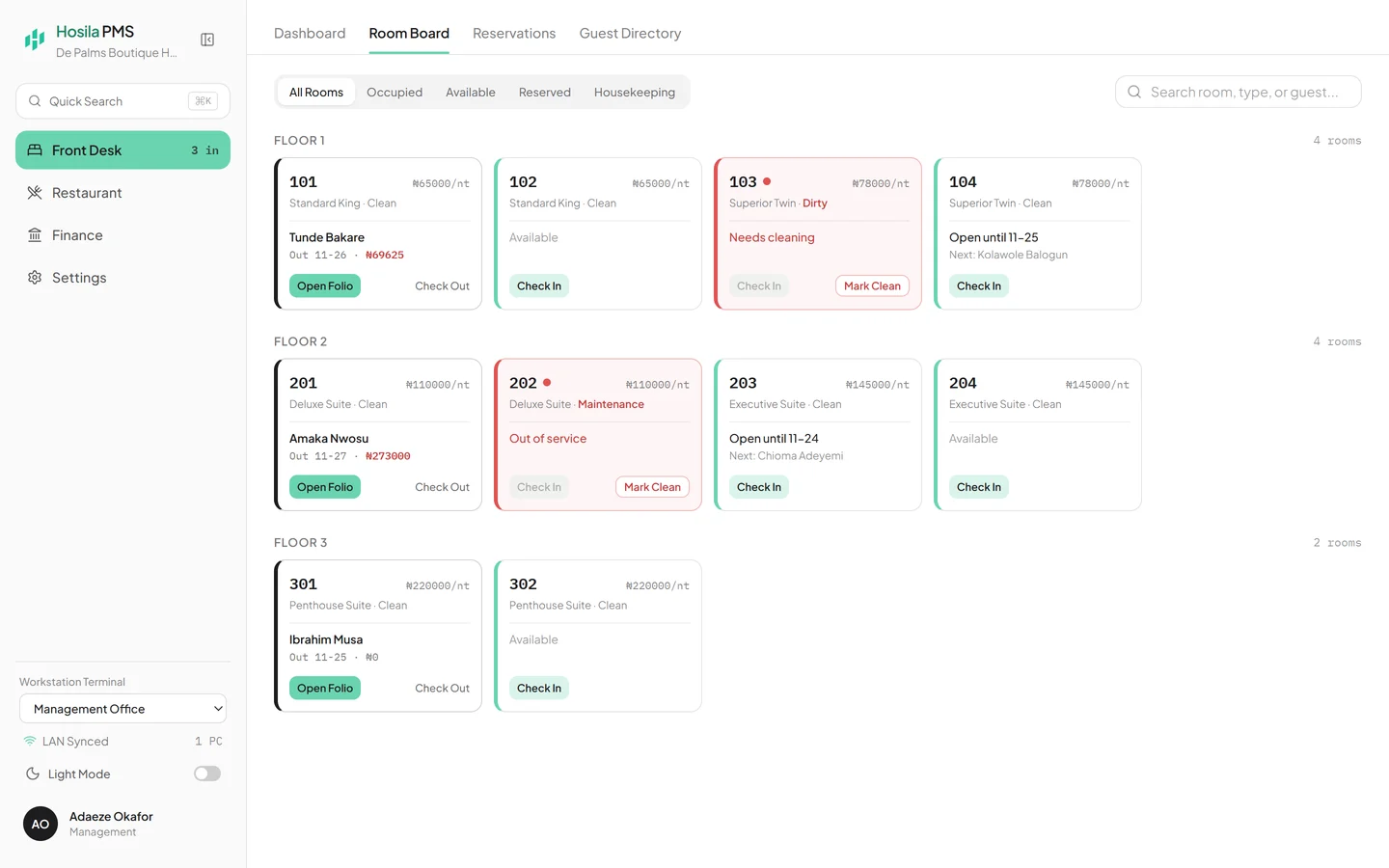
1. Fast-Scan Room Board
Section titled “1. Fast-Scan Room Board”Every room card shows a clear vertical color bar on the left so receptionists can read the whole hotel in one glance:
- Mint Green: Available & Clean — ready for immediate check-in.
- Charcoal: Occupied & Clean — active guest stay in good standing.
- Soft Red: Dirty, Under Maintenance, or Occupied with an overdue checkout or unpaid balance.
Hosila protects room standards automatically: checking a guest into a Dirty or Maintenance room is blocked until Housekeeping or Reception marks it Clean inside the side-panel Room Inspector.
2. 14/21-Day Booking Chart
Section titled “2. 14/21-Day Booking Chart”Switch to Reservations to view two or three weeks of room availability by floor. Click any open date cell to create a reservation pre-filled with that room and arrival date, or click any stay bar to jump straight into the Guest Bill.
3. Flexible Guest Billing
Section titled “3. Flexible Guest Billing”- Extend Stay: Add extra nights in the same room or move the guest to another clean room, assigning the extra nights to either the Personal Bill or Company Bill.
- Move Room: Relocate an in-house guest mid-stay; the old room automatically switches to Dirty for housekeeping, and checkout-morning moves never add accidental extra night charges.
- Corporate Split Bills & Mixed Payments: Click Auto-Split Corporate to place room charges on the Company invoice and dining/extras on the Personal bill, and accept Cash + Card + Bank Transfer together in one checkout.
- Settle Later (City Ledger): Managers and Accountants can authorize checking out VIP or corporate guests with an unpaid balance and a mandatory approval note; all unpaid balances appear cleanly under Finance → Unpaid Check-Outs.